Boot Times Measured in Seconds
Solid State Drive (SSD) Installation & Upgrades in La Grande for computers with slow startup and file access delays
Mechanical hard drives cause the most noticeable performance lag in computers that are otherwise functional. When your system takes several minutes to become usable after pressing the power button, or files take excessive time to open and save, the spinning platters inside traditional drives create a bottleneck that no amount of software optimization can fix. Outstanding Computer Repair installs solid state drives in desktop and laptop systems throughout La Grande, replacing aging mechanical storage with components that eliminate moving parts and access data nearly instantaneously.
SSD installation involves more than physically swapping drives. The service includes cloning your existing hard drive to transfer your operating system, applications, and files to the new SSD without reinstalling Windows or reconfiguring settings. This process preserves your exact setup while delivering the speed improvement, and works with both SATA connections found in older systems and NVMe interfaces in newer motherboards that support M.2 drives. Storage expansion gets addressed when your current drive is nearly full, with options to keep the old drive as secondary storage or migrate to a larger SSD.
Arrange an evaluation to determine which SSD type and capacity matches your system's capabilities and storage requirements.
How SSD Installation Changes System Performance
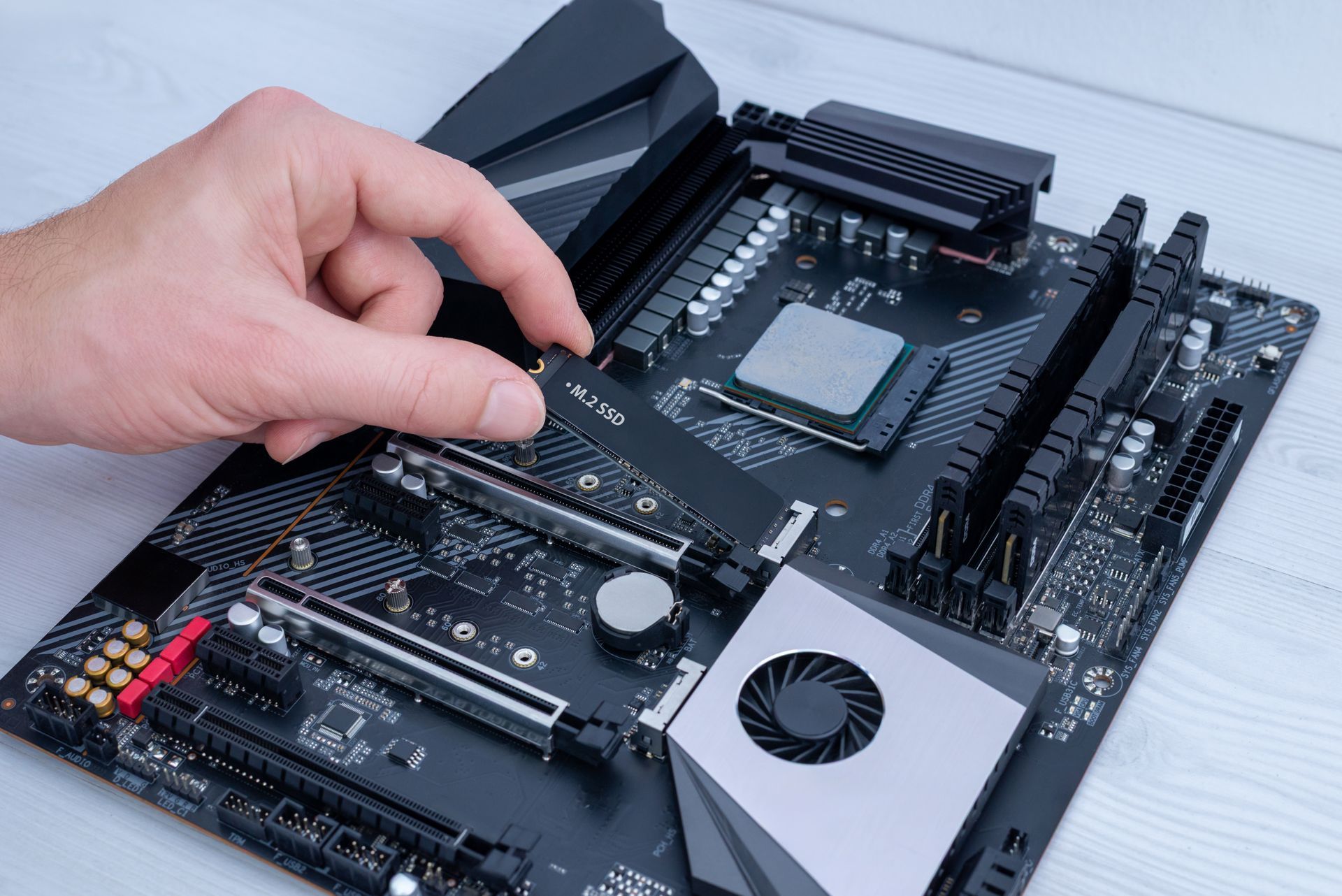
The installation process begins with verifying your system's interface type and available slots, since SATA SSDs work in nearly any computer built in the last fifteen years while NVMe drives require specific M.2 slots on the motherboard. Cloning software copies every partition, file, and system setting from your old hard drive to the new SSD, creating an exact replica that boots identically but runs substantially faster. System optimization after installation includes enabling TRIM commands that maintain SSD performance over time and adjusting power settings that were configured for mechanical drives.
You'll notice your computer boots fully in fifteen to twenty seconds instead of two to three minutes, and applications that previously took ten to fifteen seconds to launch now open in one to two seconds. File transfers that crawled at fifty to one hundred megabytes per second on mechanical drives now complete at five hundred megabytes per second or faster with NVMe SSDs. The constant clicking and grinding noise from aging hard drives disappears completely since SSDs contain no moving components.
SSD upgrades don't address processor-related slowdowns or insufficient RAM, so systems that struggle with demanding applications may need additional hardware changes beyond storage. The existing hard drive can remain installed as a secondary drive for bulk storage of photos and videos that don't require fast access speeds, maximizing total storage capacity while keeping the operating system on the faster SSD.
Answers to Common SSD Questions
Property owners and business operators in Baker City typically ask about drive types, cloning reliability, and performance differences before upgrading storage.
What distinguishes SATA SSDs from NVMe drives?
SATA SSDs connect through the same cables as mechanical hard drives and reach maximum speeds around five hundred fifty megabytes per second, while NVMe drives plug directly into M.2 slots on the motherboard and achieve speeds exceeding three thousand megabytes per second, though both eliminate the slowdowns caused by spinning platters.
How does cloning prevent data loss during the upgrade?
Cloning software creates an exact sector-by-sector copy of your original drive while it remains connected and functional, allowing verification that all files transferred successfully before the old drive is removed from the boot sequence, so your original data stays intact throughout the process.
When does it make sense to upgrade SSD capacity beyond my current drive size?
Upgrading to larger capacity prevents the need for a second upgrade when your storage needs grow, and makes sense if your current drive is more than seventy percent full or if you regularly delete files to free up space.
What happens to the old hard drive after SSD installation?
The mechanical drive can be repurposed as secondary storage for files that don't need fast access speeds, or it can be securely wiped and returned to you for disposal, depending on whether you need the additional storage capacity.
How long do SSDs typically last compared to mechanical drives?
SSDs lack moving parts that wear out mechanically, and modern drives include wear-leveling technology that distributes write operations across memory cells to extend lifespan well beyond five to seven years of typical use, often outlasting the useful life of other system components.
Outstanding Computer Repair handles SSD upgrades with cloning procedures that preserve your complete system setup while eliminating storage-related performance bottlenecks. Contact the shop to review which SSD type and capacity will work with your specific computer model.